

Accessing Your Graduate Program Portal
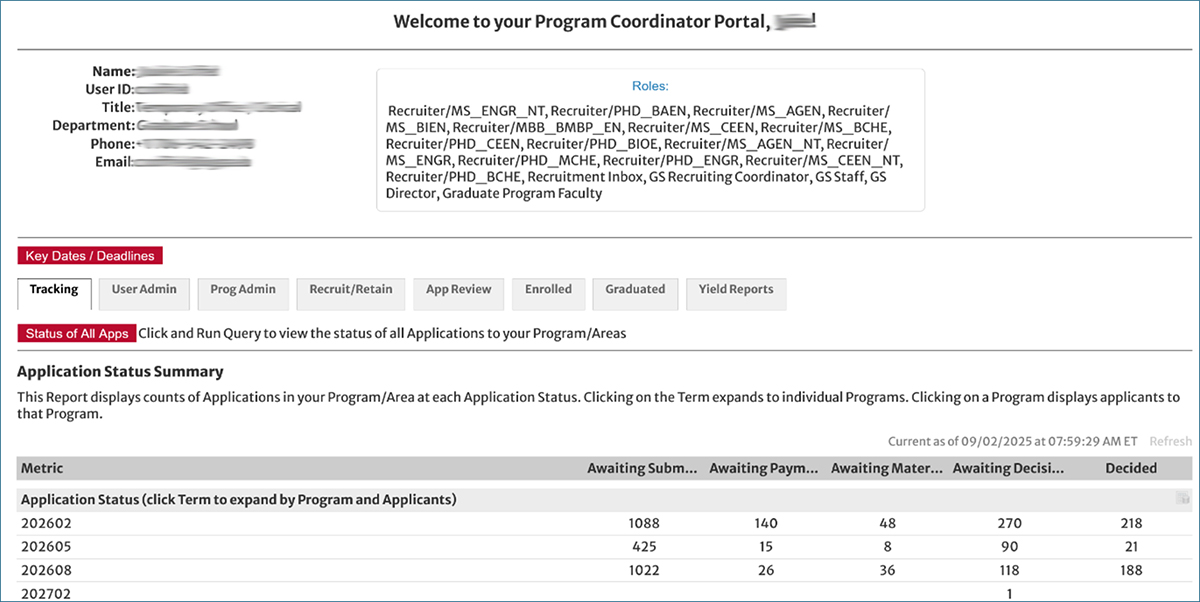
When you click on the Graduate Program Portal tile or text link you will be taken to a login screen. Please note, this is a secure site, you may be asked first to sign into UGA’s SSO using your MyID/PW. Additionally, if you haven’t logged into SSO recently, it may send a code to your phone/email to verify your identity. Please follow the instructions to verify. Once you sign on and enter your program coordinator portal, you should see a screen that looks somewhat like image1 below.
Image 1:
Accessing your program recruitment information:
It is important to note here that you must have the Slate role of ‘Recruiter’ to access the information on the recruitment screen. Check the box next to your name and title to see what Slate Roles have been assigned to you. To have the recruiter role assigned to you click on the ‘User Admin’ tab next to the ‘Tracking’ tab and follow the link ‘Request Role’ to submit a request.
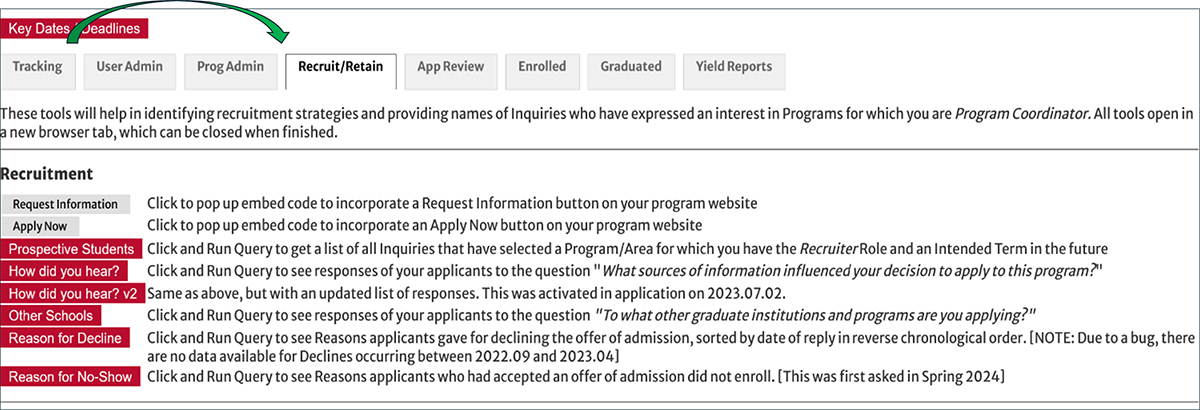
The program portal typically opens in the Application Tracking screen. Navigate over to the Recruit/Retain tab and click on it to open the Recruitment screen (image 2). There are several tools for you to choose from on the left side under Recruitment. All the red or gray boxes are active links, based on your assigned role in Slate. Don’t be concerned about the ‘Run Query’ language in the explanation lines to the right of the boxes, the basic queries for each are already written for you.
Image 2:
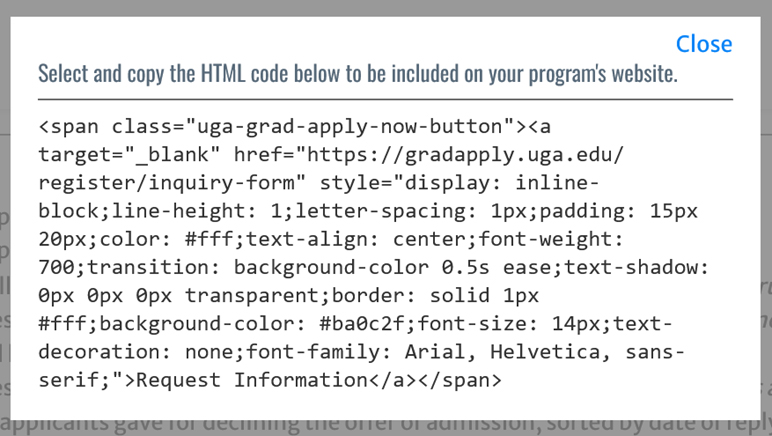
To add the Request for Information or Apply Now buttons to your department/program website, click on the gray Request Information or Apply Now box to get a ‘pop-up’ box with an html code that your webmaster can embed on your website. The box containing the code will look something like the text in image 3.
Image 3:
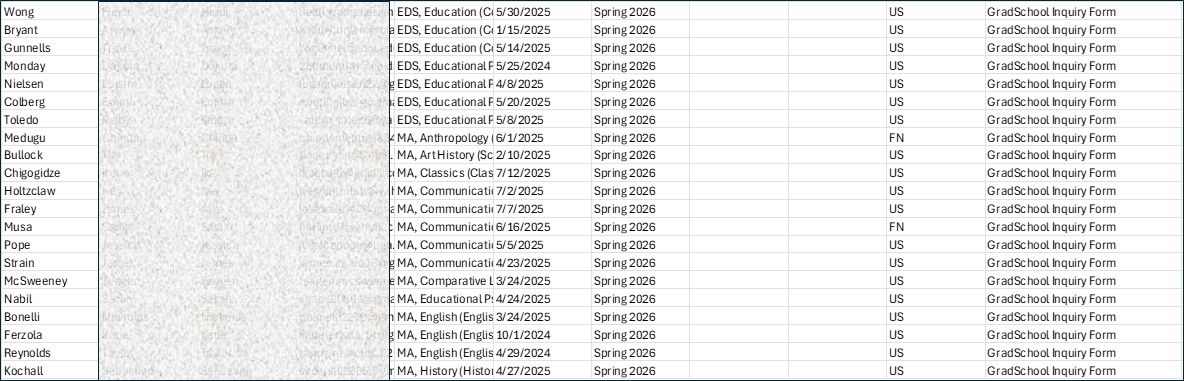
Click on the red box Prospective Students to get a list of prospective student names and contact information. When you click on the red box, it will take you to another screen (image 4). At the bottom of this screen you will then click on ‘Run Query’ and it will bring up a list of individuals who have filled out an RFI form and listed your program as a program of interest (image 5a). This is where having the RFI form on your program website comes in very handy. Once Slate populates that list for you, you can export it to excel (image 5b). The information shown in these images is abbreviated to save space. More details are available in the actual populated lists and downloads.
Image 4:
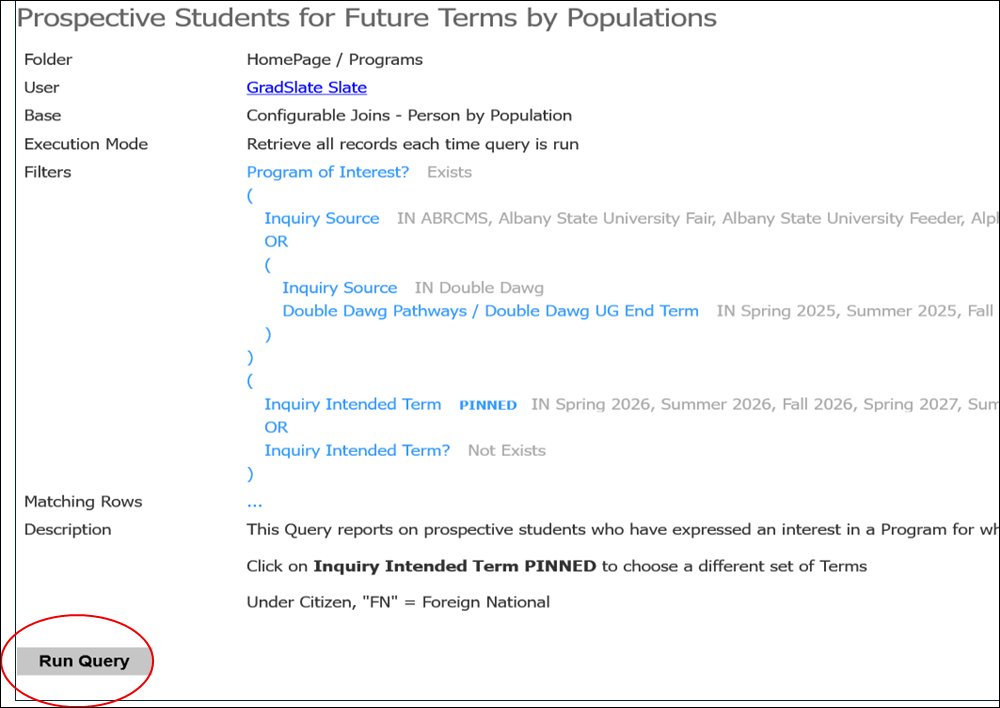
Image 5a:
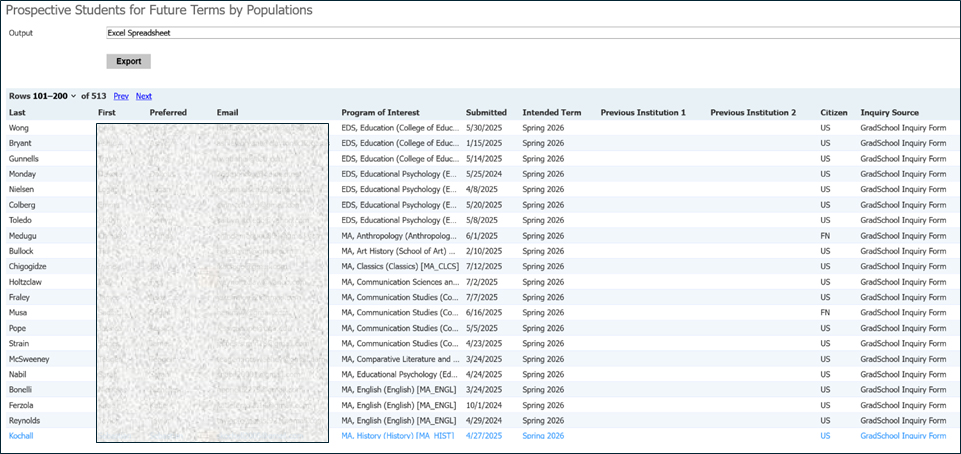
Image 5b: