
The screenshots below show the sequence of how a new applicant creates a person account and starts an application in GradSlate.

Using the URL gradapply.uga.edu/apply/ takes an anonymous user to this page:
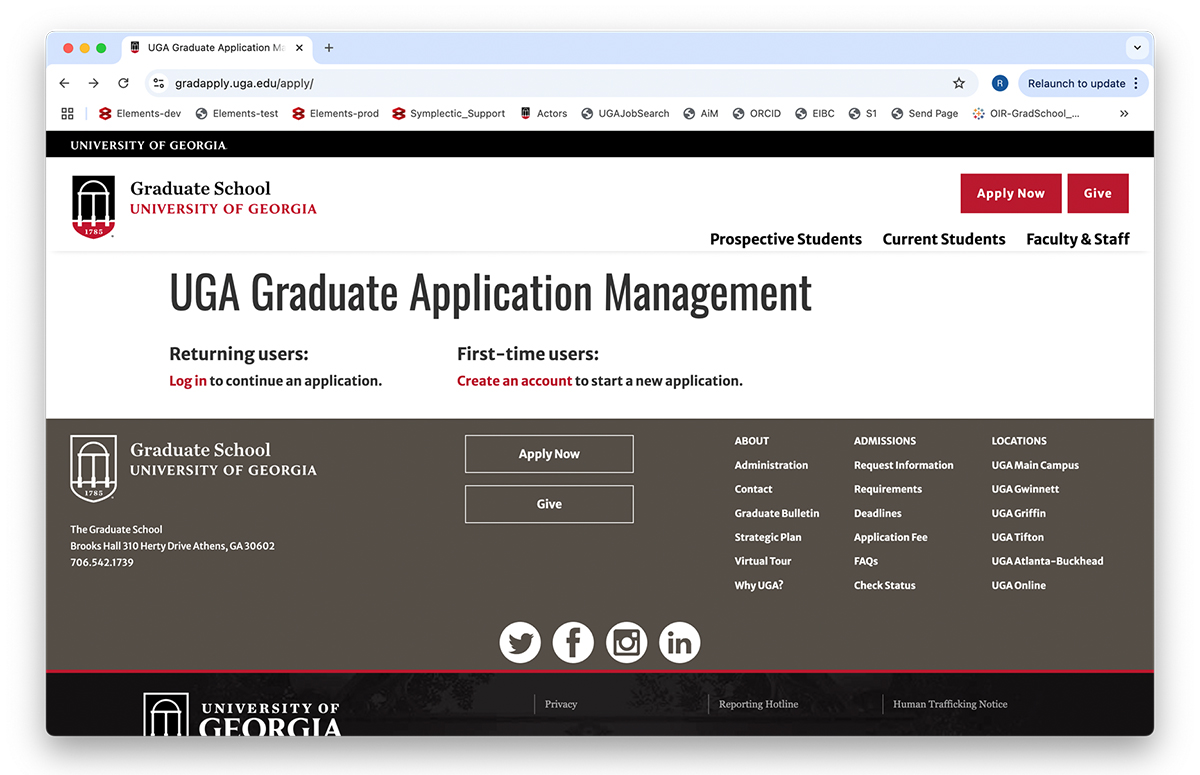
Screenshot of the UGA Graduate Application Management page where users can select Log In (if they are returning) or Create an account (if this is their first time)

Clicking on “Create an account” under First-time users results in:

Screenshot of the Register page on which new users enter their email, first and last name, and birthdate. This allows creation of a new person record in GradSlate.

Both email address and birthdate will be used for further verification later in the process. Clicking “Continue” takes the user to a login page:
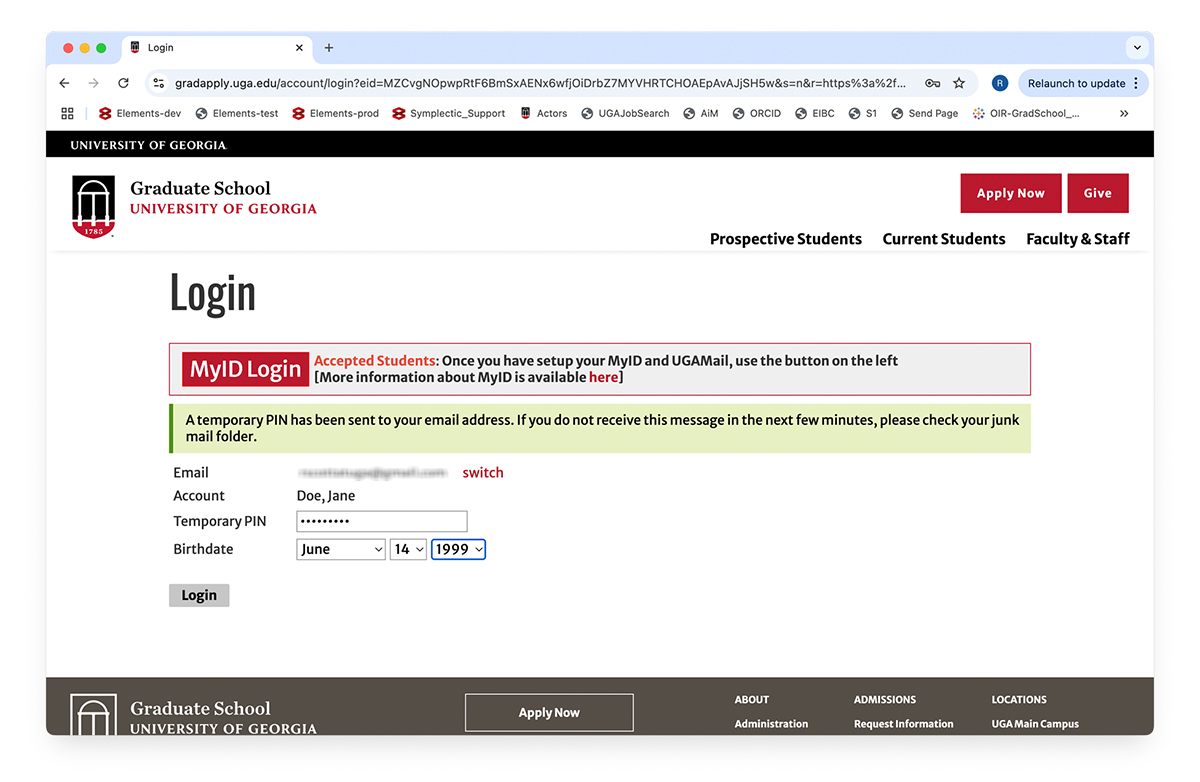
Screenshot of Login page on which a new user enters their temporary PIN (received by email) and re-enters their birthdate. This verifies their identity so that they can set a password.

The email with the PIN is sent to the email address provided for the new account:
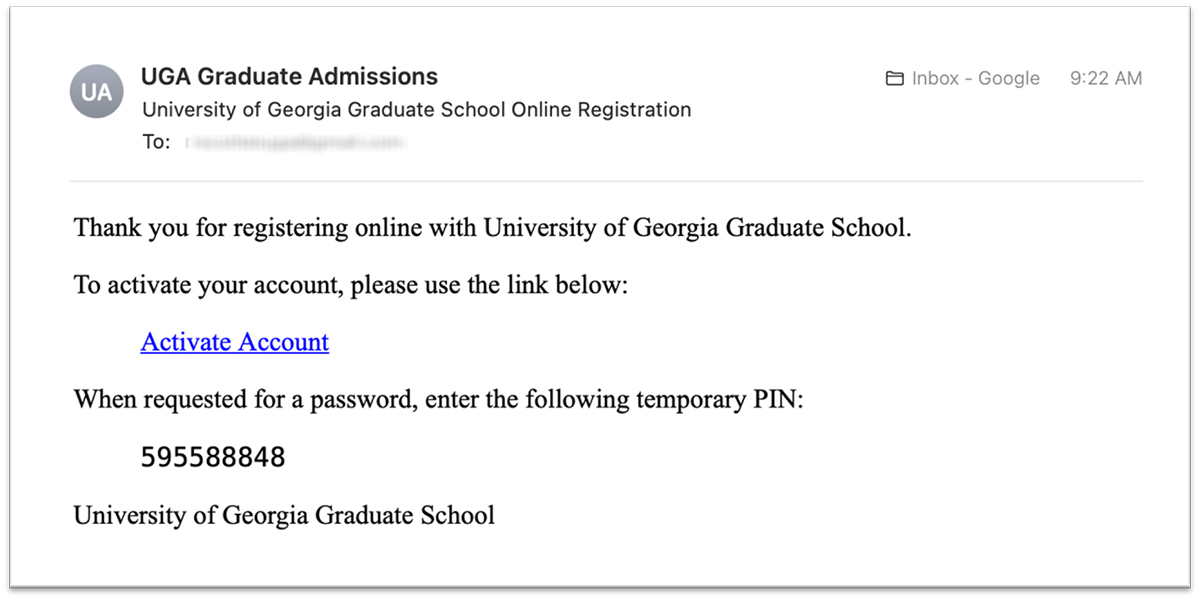
Screenshot of the email message that provides the new user with their temporary PIN.

Filling in this PIN and repeating the birthdate originally submitted leads to password setting:
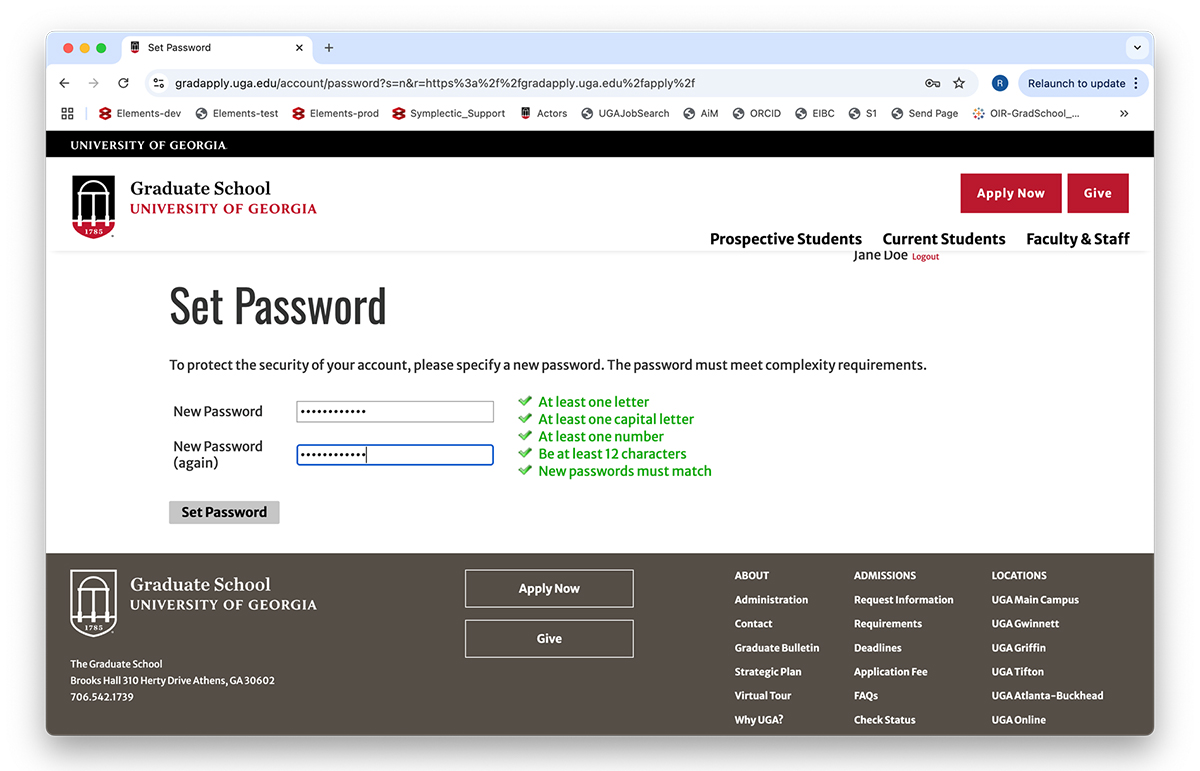
Screenshot of the Set Password page on which the new user creates a password for login access to their person record in GradSlate.

With person authentication set, clicking “Set Password” takes the applicant back to the app management page:
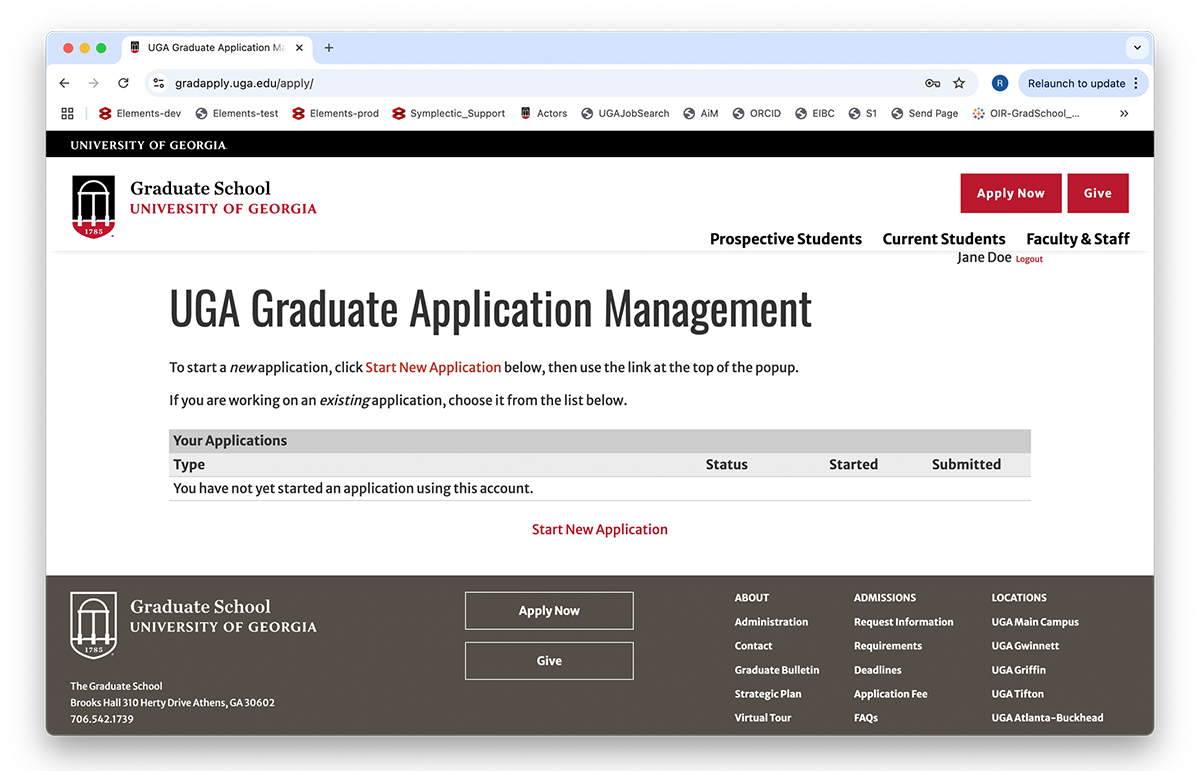
Screenshot of the UGA Graduate Application Management page after password setting, allowing the new user to create an application.

Clicking on “Start New Application” at the bottom of the screen opens a popup…
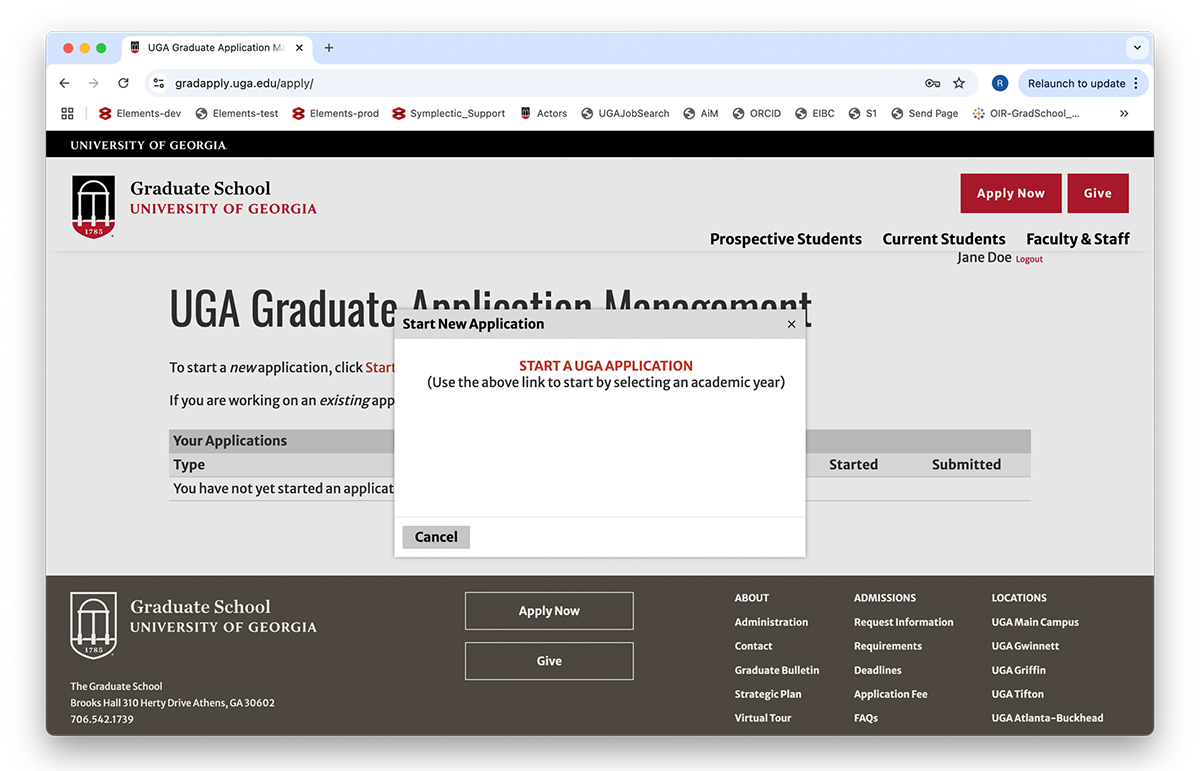
Screenshot of the popup window that appears when the new user selects Start an Application. They click START A UGA APPLICATION on this popup to create an application.

…on which clicking “START A UGA APPLICATION” takes the applicant to the Start an Application form:
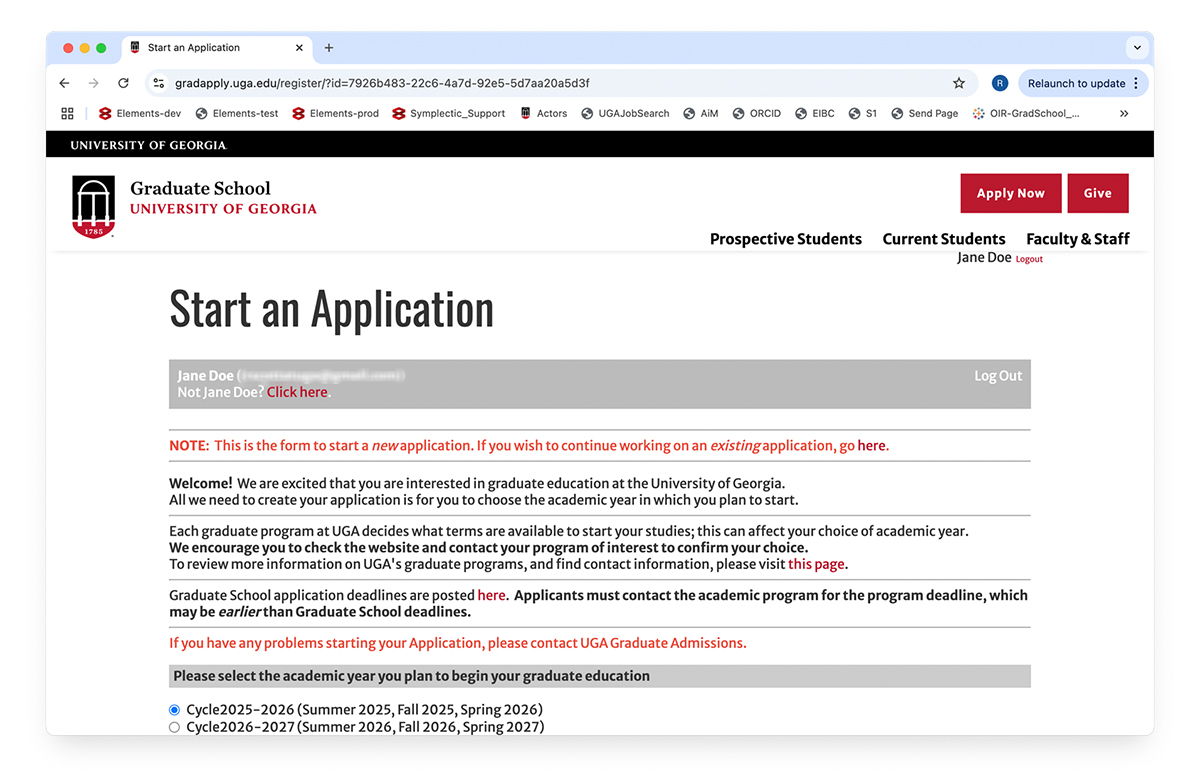
Screenshot of the Start an Application form on which a new applicant selects the application cycle for the intended start term for a new application.

Once an academic year (application cycle) is chosen, clicking “Submit” displays a confirmation message with a link back to the app management page:
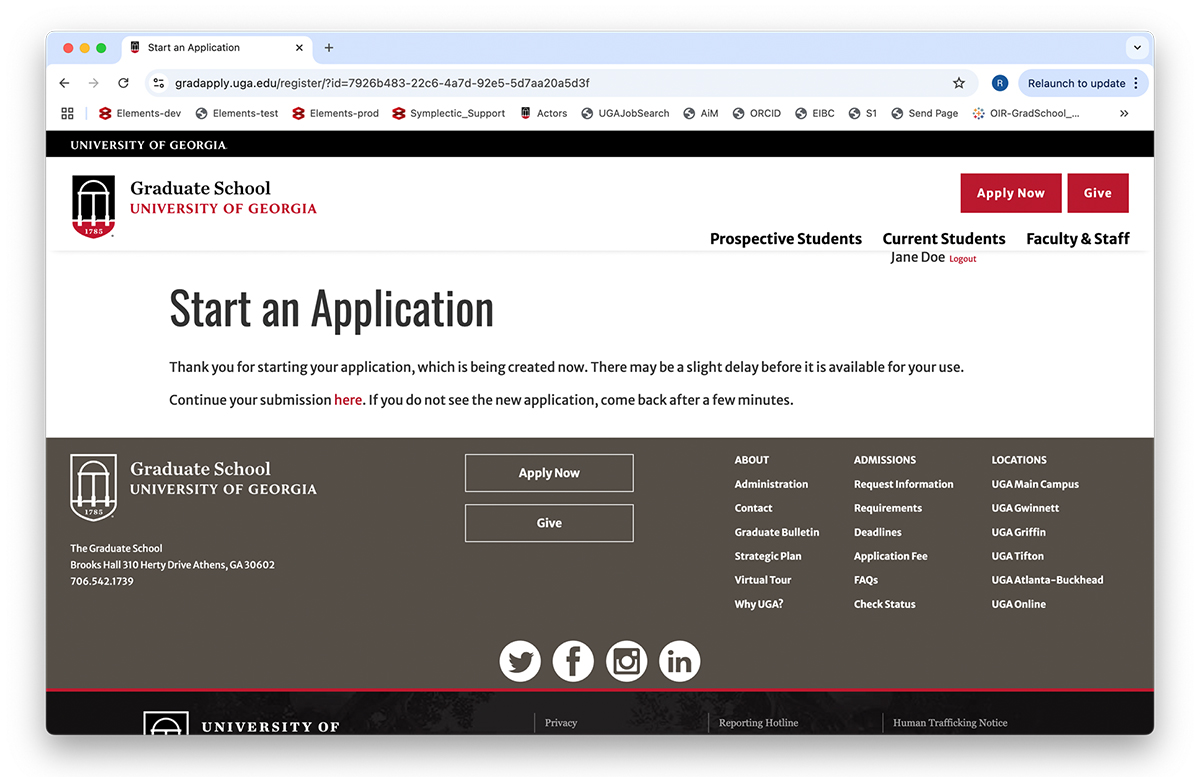
Screenshot of the confirmation message that a new application is being created and providing a link to that application to provide detailed data.

Clicking on “here” takes the applicant back to their list of current applications in which the newly created application should appear. A confirmation email is also sent to the account’s email address providing another link to the app management page:

Screenshot of the UGA Graduate Application Management page that now lists the new application that was just created.

Clicking on the application (AC25-26 Graduate Application) generates a popup with a link to start completing the application:

Screenshot of the popup screen that appears when the new application listing is clicked. Choosing the Open Application button takes you to the initial application page.

Click the Open Application button, and the applicant starts on Application page 1 (Program/Term Selection):

Screenshot of the first application page Program/Term Selection where the applicant selects the degree program of interest and the intended start term.

Once the “Intended Program” and “Intended Term” are selected and “Continue” is clicked, the program and term will be listed next to the application link on the app management page (e.g., FA25-PHD_ILSC).


Unlocking potential. Building futures.

Apply Today